
Sign in, your profile and your account
The three ways to sign in to AISKOOL, what happens the first time, how to edit your profile, and how to sign out or delete your account.
This article covers the three ways to sign in, what happens the first time, how to edit your profile, and how to sign out or delete your account.
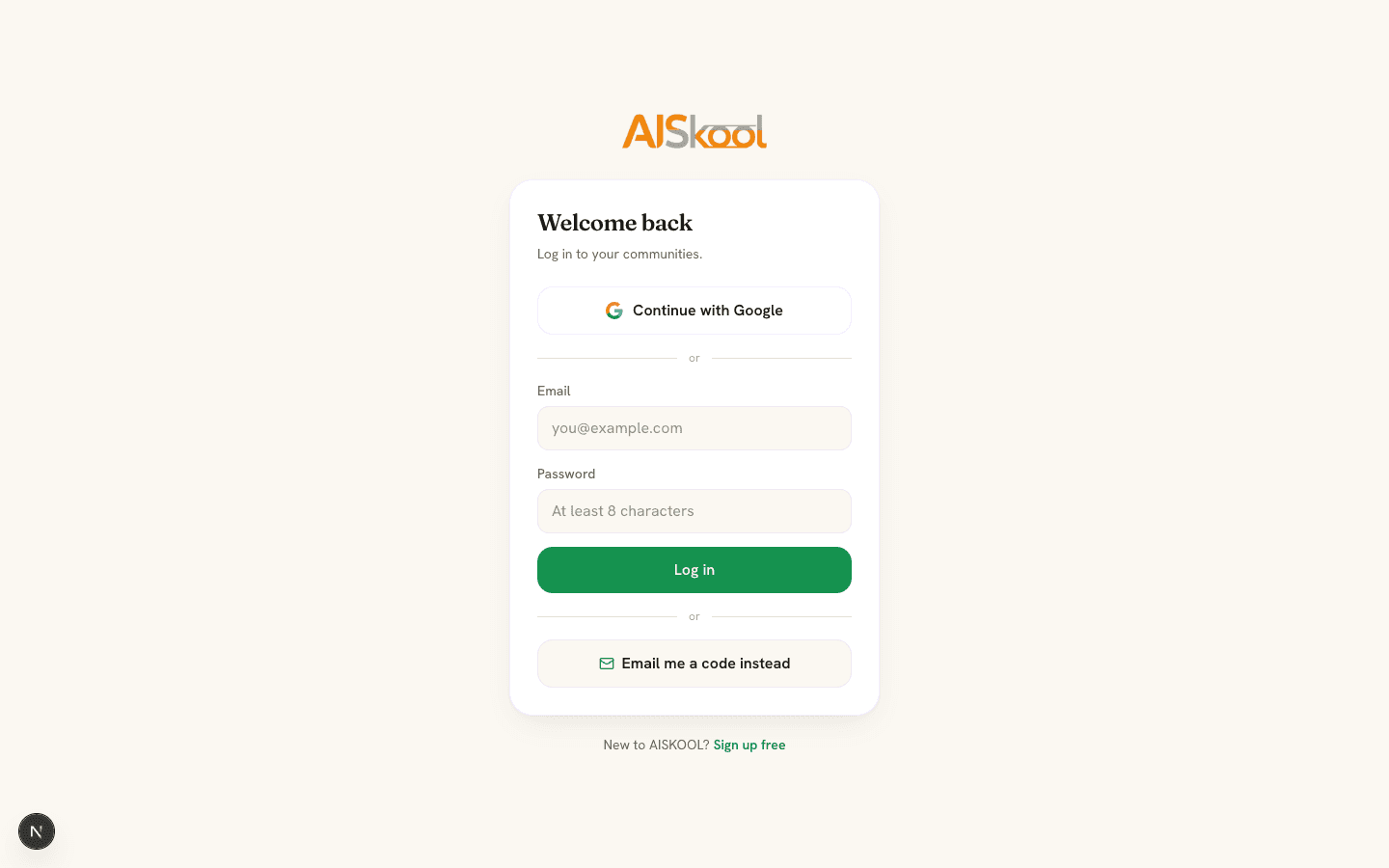
Three ways to sign in
- Email and password. Enter both and select Log in. Passwords need at least 8 characters.
- Select Email me a code instead, enter your email and select Send code. AISKOOL emails a 6-digit code. Type it and select Verify & continue. No password is needed, and an address with no account gets one.
- Continue with Google. Choose your Google account. Google must have verified its email address.
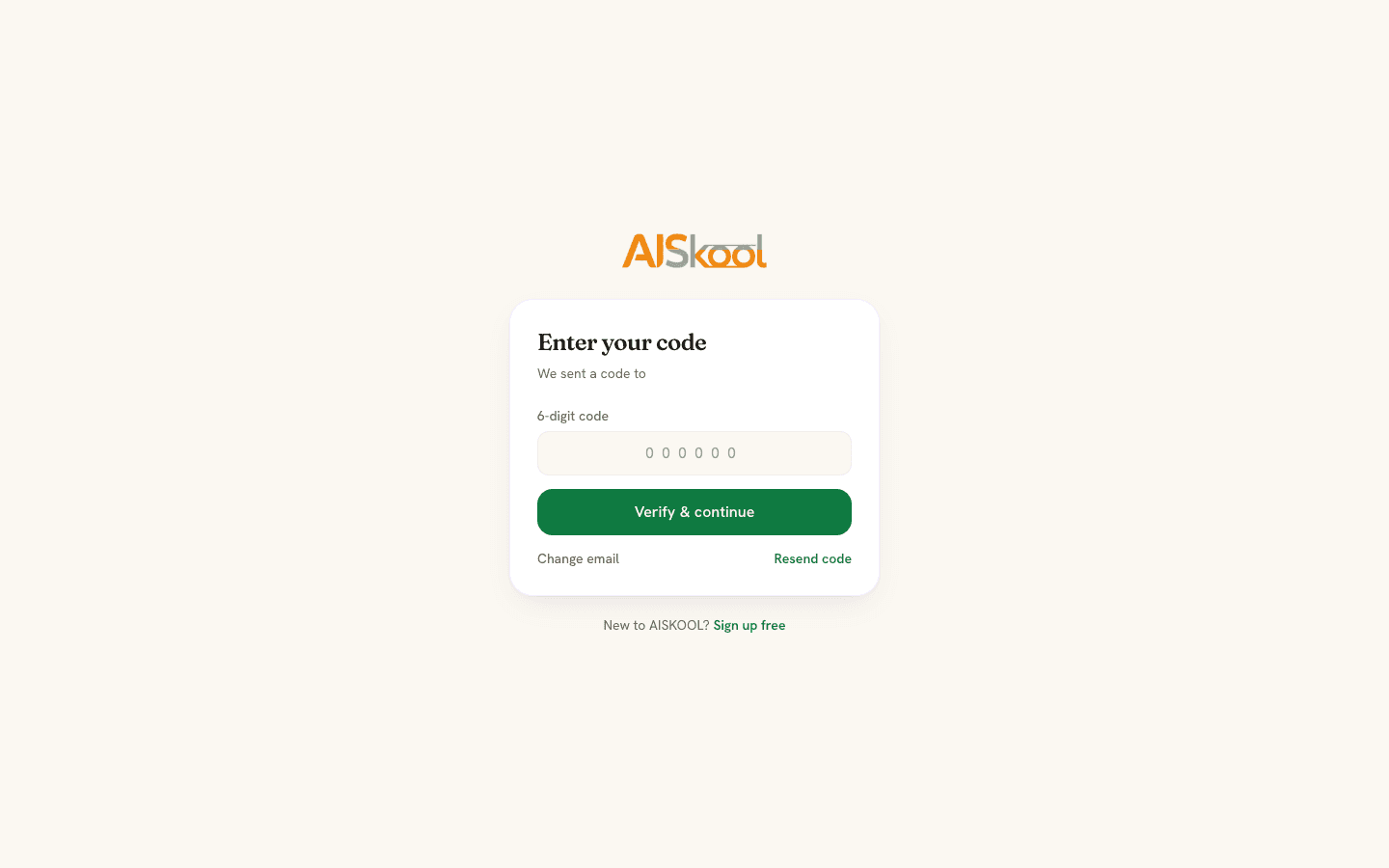
If you sign up with a password, AISKOOL emails a code first, and you are not signed in until you enter it. Accounts match by email, so Google or a code on an address that already has an account opens that account.
Your first sign-in
New accounts open Complete your profile. Add a photo (PNG, JPG or WebP up to 8 MB), your name, a short bio and your #1 goal, then select Complete. You can select Skip for now instead. A welcome email follows. After that you land in the community you used last, or on Discover if you have none.
Edit your profile
- Select your avatar at the top right, then Edit profile.
- Change your photo, name, bio, goal, location or links (Website, X, Instagram, LinkedIn, YouTube).
- Select Save profile.
Account & security
Select your avatar, then Edit profile, then Account & security. You can also go straight to aiskool.co/account. It has four parts.
- Email. Enter the new address and AISKOOL sends a code to it. Type the code to confirm. If your account has a password, AISKOOL also asks for your current password. Accounts made with Google or a code are not asked. The old address gets an email saying the address was changed, with hi@aiskool.co to write to if it was not you.
- Password. Set a new password, or add one if you signed up with Google or a code. AISKOOL emails a code to confirm it is you. Changing your password signs out your other devices, and this one stays signed in.
- Sign out everywhere. Logs out every device, including this one.
- Delete account. See below.
Sign out
On the website, select your avatar, then Log out. In the mobile app, open Profile, then Settings, then Sign out. Sign out of all devices in the app and Sign out everywhere on the web end every session.
Delete your account
You can delete your account on the web under Account & security, or in the mobile app: Profile, Settings, Delete account. Confirm with your password or a code we email you, then confirm again. Deleting is permanent:
- It deletes your profile, posts, comments, messages and memberships.
- It cancels your paid memberships and any Agency plan.
- It forfeits any AI credit and wallet balance. The app shows the amounts first, and they cannot be refunded or moved to another account.
An account that owns a community cannot be deleted. Close your communities first. If you are stuck, email hi@aiskool.co. If a subscription cannot be canceled, nothing is deleted, and you can try again later.
Frequently asked
I forgot my password. How do I reset it?
I signed up with Google. Can I add a password?
Can I change my email address?
Which sign-in methods work in the app?
Related articles
What is AISKOOL? A tour of the platform
A tour of AISKOOL: what a community contains, how the AI host works, what is free and paid, and where creators and members each work.
Create your community
Create a community on AISKOOL, set its name, address, icon and cover, write the About page, list it in Discover and choose free or paid entry.
AISKOOL on iPhone and Android
What the AISKOOL app covers, what you still do on the website, how notifications and sign-in work, and where the apps stand today.
Troubleshooting and FAQ
Fixes for the problems people hit most: sign-in codes, login errors, AI credits, plan limits, missing courses, changed addresses and chat. Also how to report content and reach support.