
Your AI host: Brain and Agent studio
Teach your AI host with AI Brain, shape its personality in the AI Agent studio, and see what it does and what it costs.
Your community comes with an AI host that answers member posts, welcomes new people and tutors members in direct messages. This article covers AI Brain, the AI Agent studio and what the host costs.
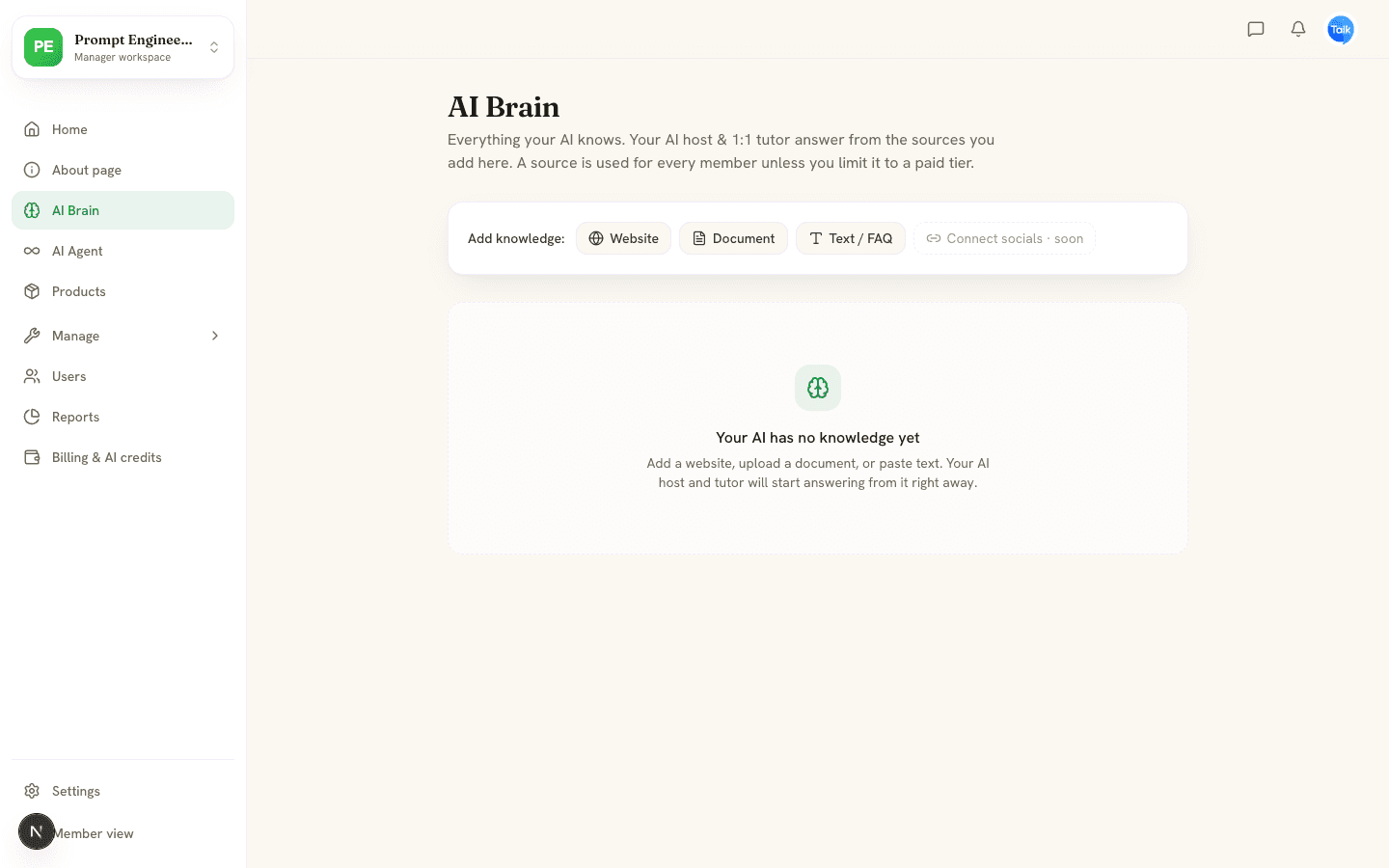
Add knowledge to AI Brain
Open AI Brain in the Manager workspace and choose a source under Add knowledge. The host answers from these sources and from your published courses.
- Website: paste a public page link and click Add website. The AI reads the text of that one page and does not follow links.
- Document: choose a PDF, Word, Excel, CSV, text or Markdown file. The AI reads it and keeps the text. With your own AI key, PDF, text, Markdown and CSV files run on your key and use no credits. Word and Excel files always use credits.
- Text / FAQ: enter a title and paste FAQs, policies or notes, up to 50,000 characters.
- Connect socials is marked soon and does not work yet.
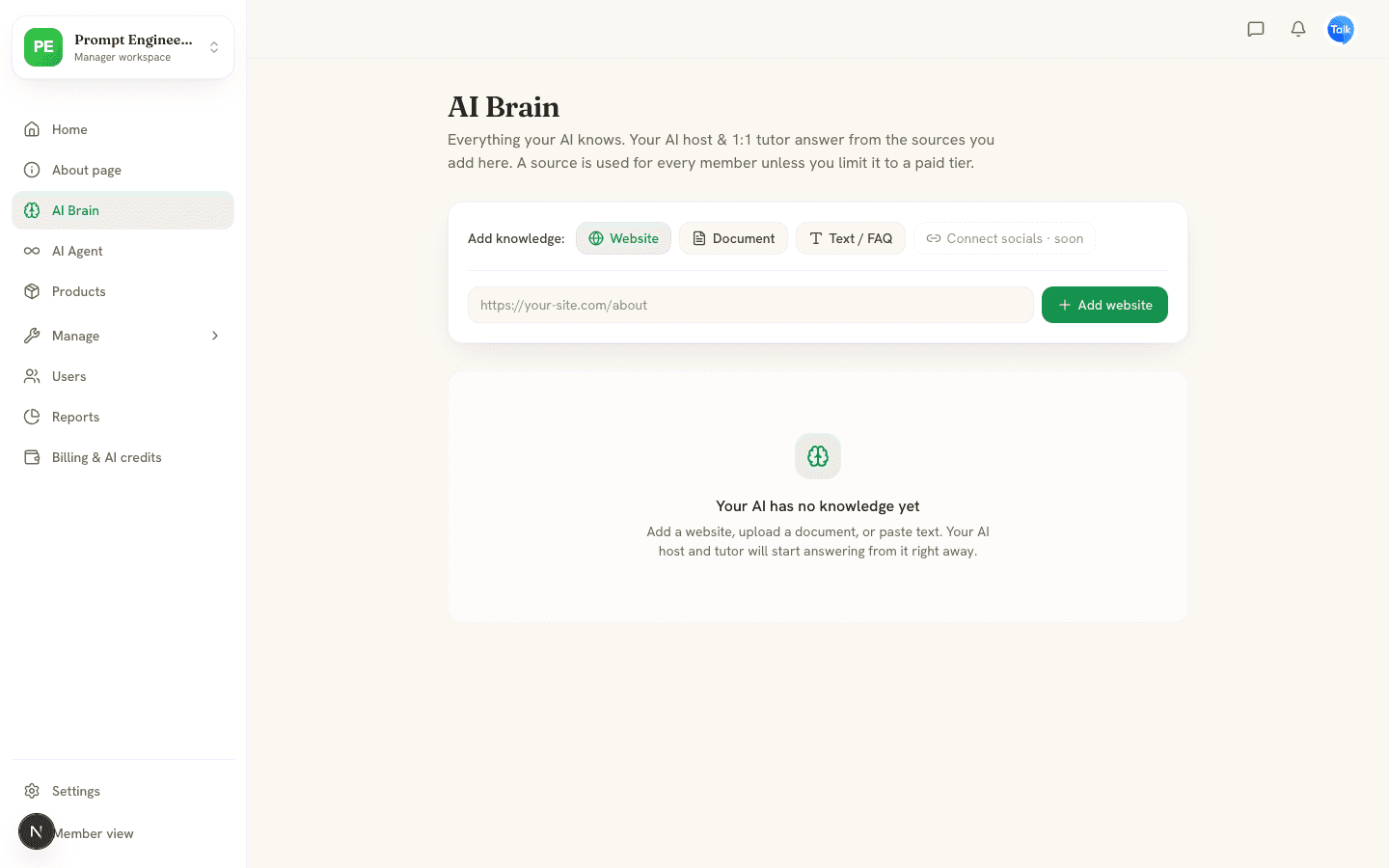
Each source shows Ready, Processing or Failed and a word count. A failed source says why, for example that a page could not be fetched. Click the trash icon to remove a source. AI Brain keeps up to 60,000 characters of each one.
The host reads roughly the first 1,500 characters of each of your 30 newest sources, plus an outline of your courses, about 9,000 characters in all. Put the facts members ask about most first, and split long documents into several sources.
Limit a source to a paid tier
Once you have a paid tier, each source gets an AI uses this for menu. Choose Everyone in the community or one tier. Members outside that tier get no answers drawn from that source in their DMs. Feed answers and the daily post use only sources open to everyone.
What the host does
- Answers posts: replies to new member posts with a short comment. It handles up to five posts per run and skips hidden posts.
- Posts daily: one tip a day that ends with a question, plus a weekly Member of the Week shoutout.
- Welcomes: sends a DM when someone joins.
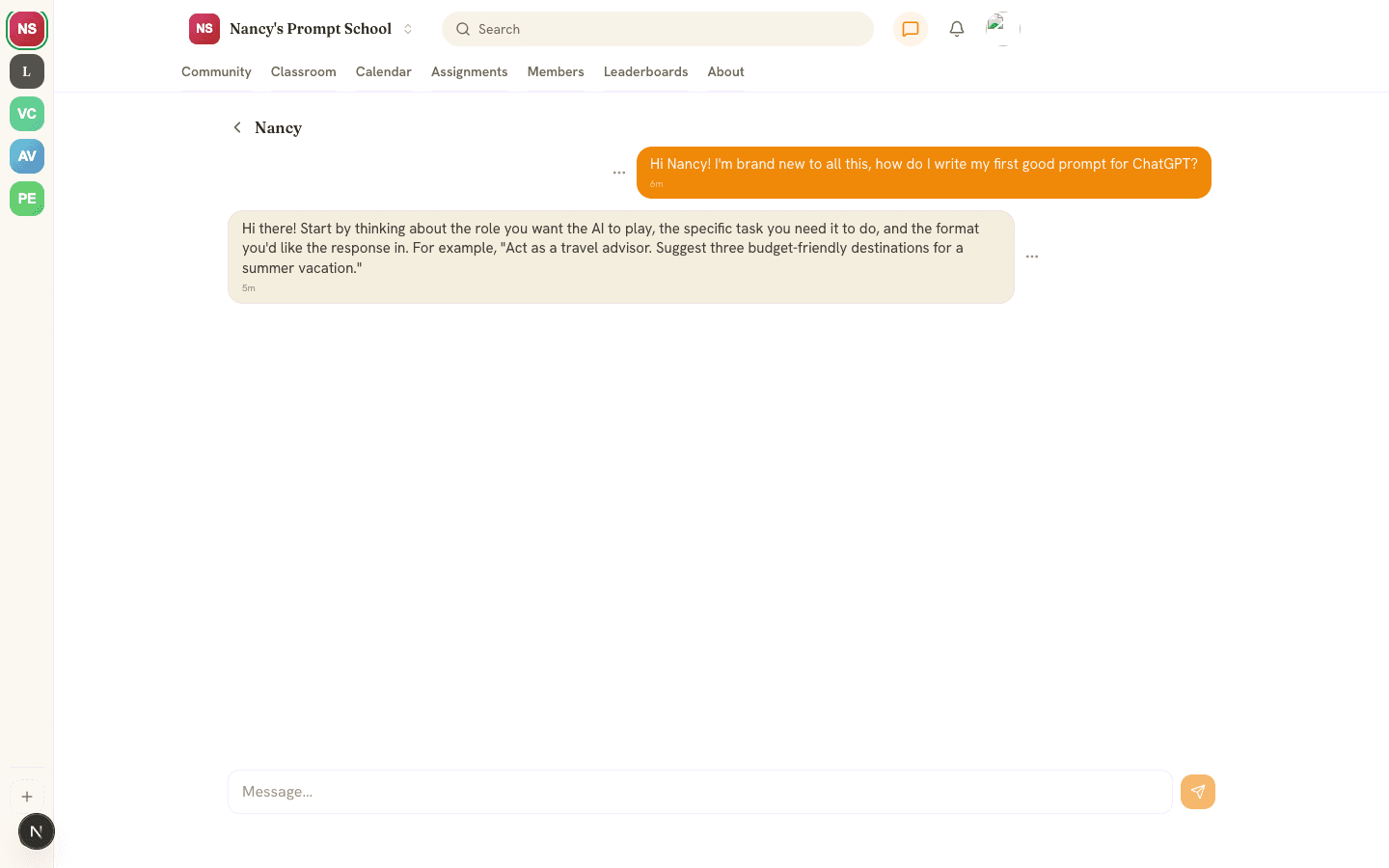
- Tutors: answers DMs from your sources and courses, and keeps a short memory of what each member asks.
- Nudges: messages members who have been away for three days, at most once every three days. It stops after three unanswered messages.
- Gives feedback: responds to quiz and assignment submissions.
The host runs about every 10 minutes. It replies to DMs and welcomes new members right away.
The AI Agent studio
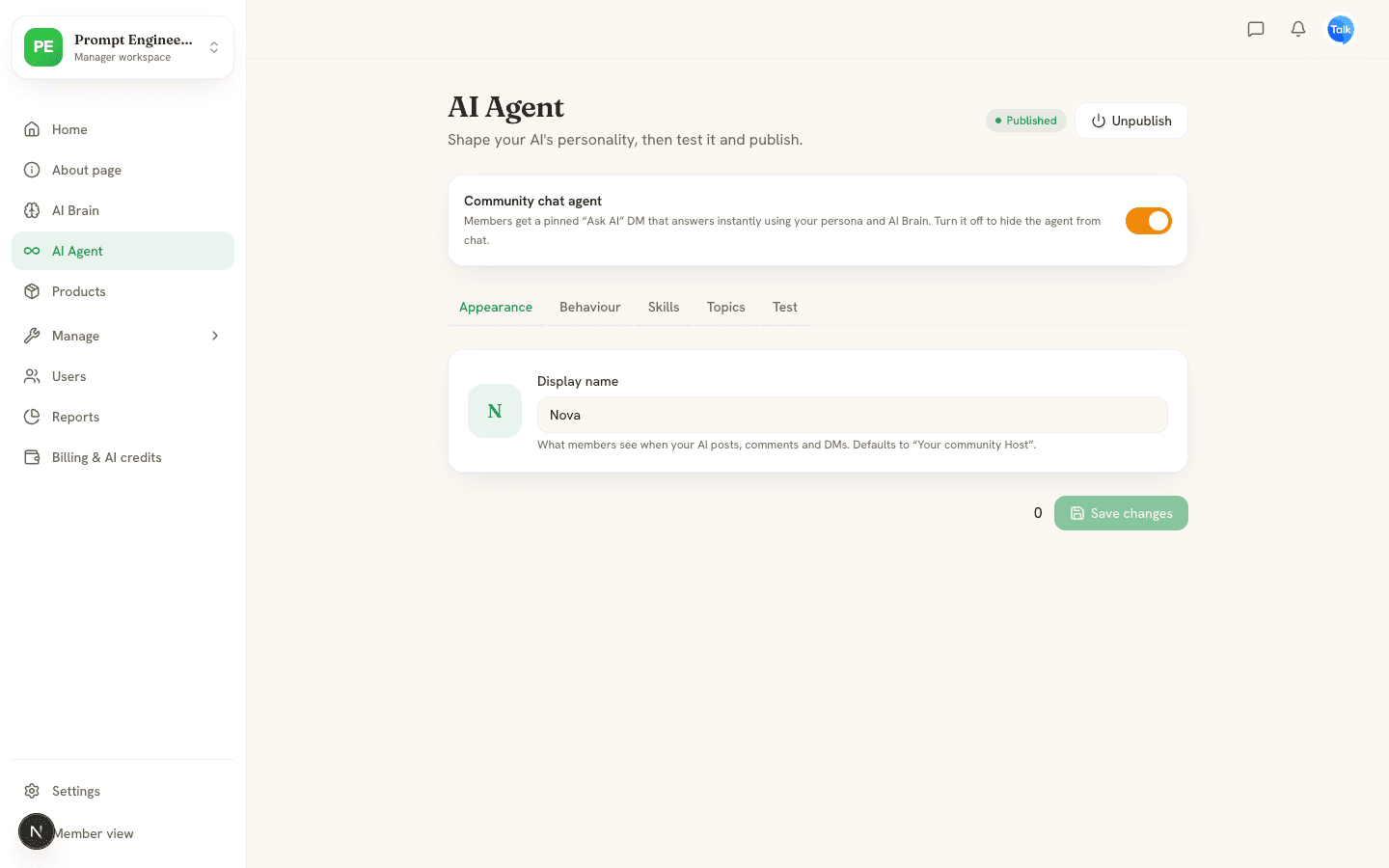
- Appearance: the Display name members see on the host's posts, comments and DMs. It defaults to your community name plus Host.
- Behaviour: pick a Tone (Warm, Professional, Playful, Expert or Socratic) and write Instructions, up to 4,000 characters.
- Skills: switch on or off Answer posts, Daily post, Welcome new members, 1:1 tutoring, Re-engage inactive and Grade & give feedback.
- Topics: up to 20 focus topics that keep the host on subject.
- Test: chat with the host using your unsaved settings. It uses your AI budget.
Click Save changes after editing. Published means the host runs on its schedule. Unpublish stops its posts, welcomes, nudges and feedback. The Community chat agent switch is separate. It controls the Ask shortcut, which shows the host's name and opens a DM with it. Turn it off to hide the host from chat.
Does the host say it is an AI?
The host and the AI tutor stay in the character you give them, and the AI feedback on quizzes stays warm. If a member sincerely asks whether they are talking to an AI, they say so plainly.
What it costs
Every host action is AI use. It draws on your plan's monthly AI grant first, then your credit balance. With your own AI key it skips credits. Adding a website or text source is free. Reading a PDF or text document runs on your own key when you have one. Reading a Word or Excel file always uses credits. When both your grant and credits are empty, the host stops posting and replying. A member who messages it is told it cannot reply right now, and Test says you are out of AI credits (error 402). See Plans, AI credits and bring your own key.
Limits protect your balance: 10 host replies a minute and 50 a day per member, 2,000 a day per community, and nudges can use at most half of your monthly grant.
Frequently asked
Why didn't the host answer my post?
How do I turn the host off?
Can I use my own AI key?
Related articles
Build a course with AI
Generate a draft course from a topic or a document, then edit it, add slides and voiceover, set who can open it and publish.
Live chat and direct messages
Use channels and direct messages, message the AI host, and learn how reporting, deleting and blocking work.
Plans, AI credits and bring your own key
The three plans, how AI credits work, and how to run AI on your own key.
Paid tiers and getting paid with Stripe
Connect Stripe, create membership tiers, charge for joining or lock a course, and see how each payment is split.