
Feed, spaces and posts
Post, comment and react in the community feed, organize it with categories, and pin, delete and report content.
The Community tab is your community's home: a feed of posts with a box for writing on top and category chips below it. This article covers posting, categories, comments, pinning and deleting, and the Welcome checklist.
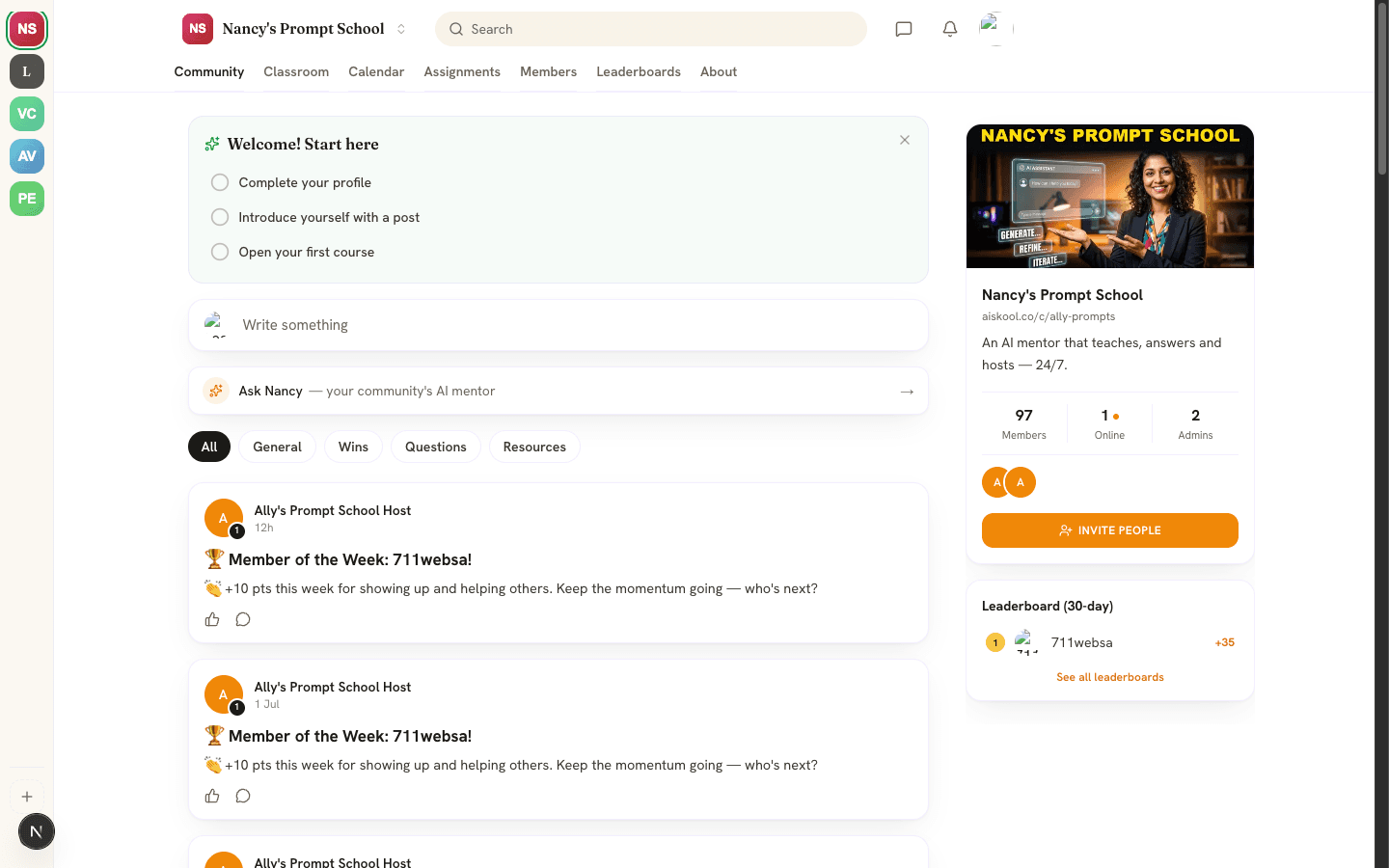
On wide screens a sidebar shows your community card, Invite people and the 30-day leaderboard. The small number on an author's avatar is their level.
Write a post
- Open the Community tab and click Write something.
- Add a title if you like and write your post. You can paste one YouTube link.
- Pick a category from the menu, then click Post.
A post can hold up to 20,000 characters, and a title up to 160. On the web only YouTube links can be attached. The mobile app can attach up to four photos. You cannot edit a post after you publish it. Each post earns 5 points.
Categories
The chips above the feed are All plus your categories. New communities start with General, Wins, Questions and Resources. Owners and admins change them under Feed categories in Settings: type up to 12, separated by commas. A post in a removed category stays in All with no category. Behind the scenes, the feed, the classroom, each chat channel and the calendar are each a space. The web app shows one feed per community, so categories are how you split posts by topic.
A category named exactly Questions is special. A comment on someone else's post in it counts as an answer and earns 5 points instead of 3. See Leaderboards, points and levels.
Comments, likes and search
- Click a post to read it in full and open its comments. Type in Write a comment… and press Enter.
- The thumb icon likes a post, and the author gets a notification.
- On wide screens, the Search box at the top searches post titles and text.
- Pinned posts show a pin icon and come first, then the newest. Load more at the bottom adds 20 more posts.
- Each person can post 20 times, comment 30 times and like 60 times a minute.
- Posts and comments from people you block are hidden from you. See Live chat and direct messages.
Pin, delete and report
Moderators, admins and the owner open Manage, then Discussions in the Manager workspace. There they can Pin or Unpin a post and Delete it. Deleting a post removes its comments and takes back the points they earned. You can delete only posts by people below your own role.
Anyone can delete their own comments with the trash icon. To report someone else's post or comment, use the flag button on it and pick Spam, Harassment, Inappropriate or Other. You cannot report your own. Moderators review reports under Manage, Reported content, and in the mobile app they can also pin from a post's menu. See Mobile apps and Members, roles and moderation.
Welcome checklist and Ask shortcut
New members see Welcome! Start here with three steps: Complete your profile, Introduce yourself with a post and Open your first course. Click the X to dismiss it. It is remembered per browser and disappears once all three are done.
Under the composer, the Ask link with your host's name opens a direct message with your community's AI host. It shows only while the Community chat agent switch is on. A published host also replies to new posts and posts a daily tip. See Your AI host: Brain and Agent studio.
Frequently asked
Can I edit or delete my post?
Why do I not see category chips?
Can I add more feeds?
Related articles
Live chat and direct messages
Use channels and direct messages, message the AI host, and learn how reporting, deleting and blocking work.
Leaderboards, points and levels
What earns points, how the nine levels work, and where to find the 30-day and all-time leaderboards.
Members, roles and moderation
How people join your community, what each role can do, and how to remove, ban, report, hide and block.
Your AI host: Brain and Agent studio
Teach your AI host with AI Brain, shape its personality in the AI Agent studio, and see what it does and what it costs.