
Calendar, events and live classes
Schedule a live class, see it on the member Calendar, collect RSVPs, and change or cancel it.
Live classes are events you schedule for your community, with a title, a start time and a meeting link. This article covers how to schedule one, what members see on the Calendar, RSVPs, time zones, and how to change or cancel a class.
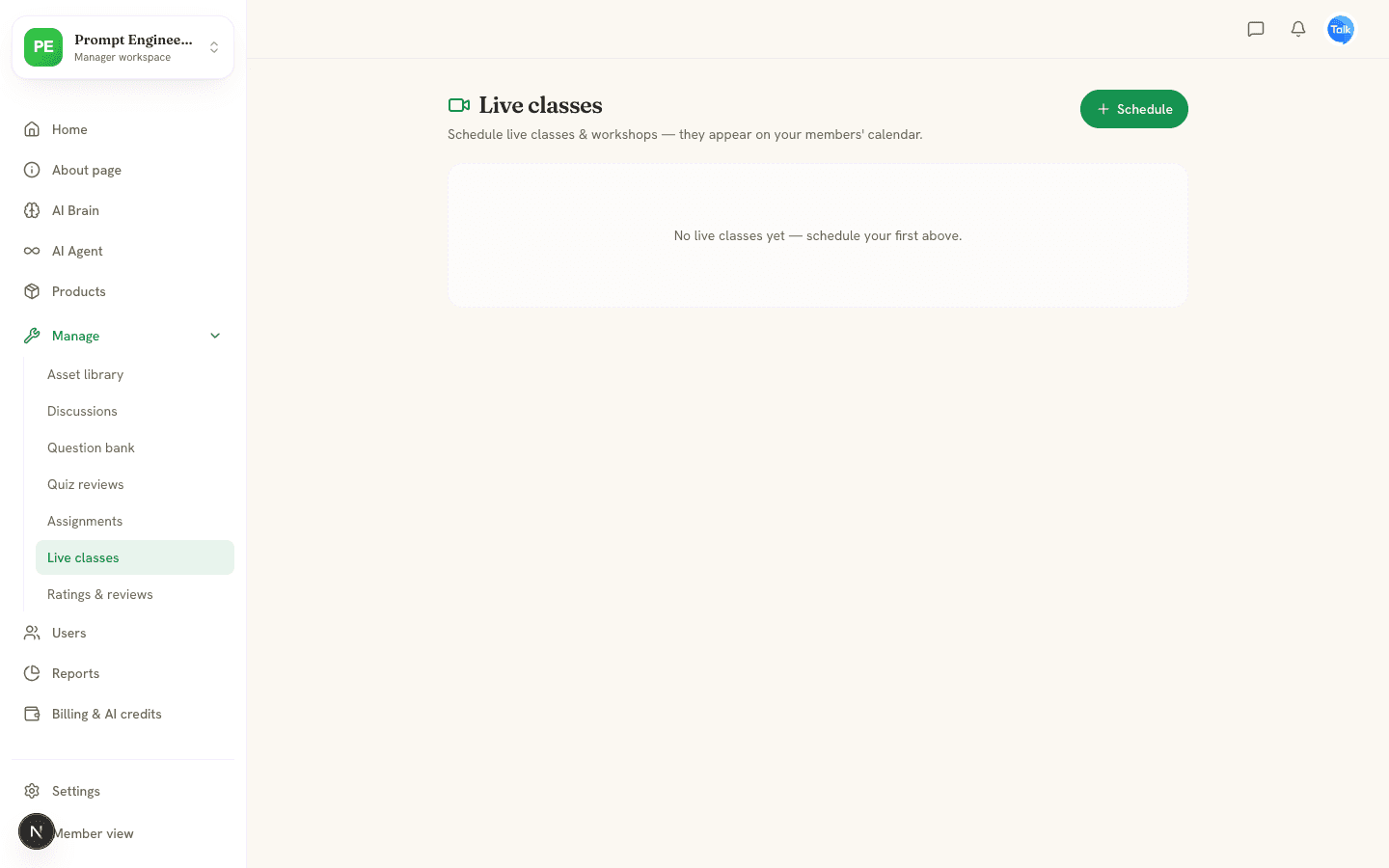
Schedule a live class
- In the Manager workspace, open Manage, then Live classes. Moderators, admins and the owner can do this.
- Click Schedule.
- Enter a Title, for example "Live Q&A: Prompt design".
- Set Starts. If you set Ends (optional), it must be after the start.
- Paste your Meeting link (Zoom, Meet or similar) as a full web link, and add a description if you like.
- Click Schedule class.
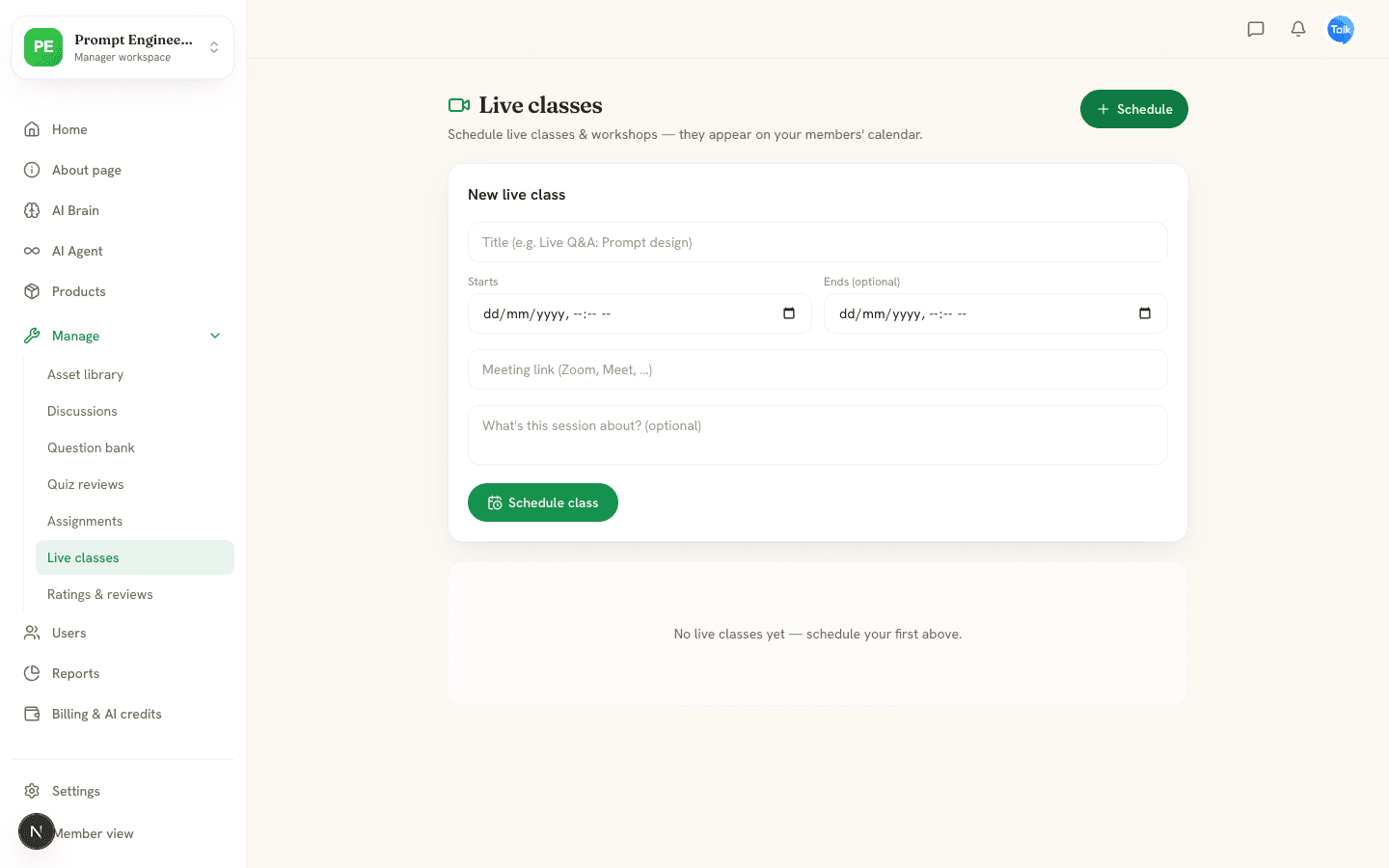
AISKOOL does not run the call. Members open your meeting link from the event.
What members see
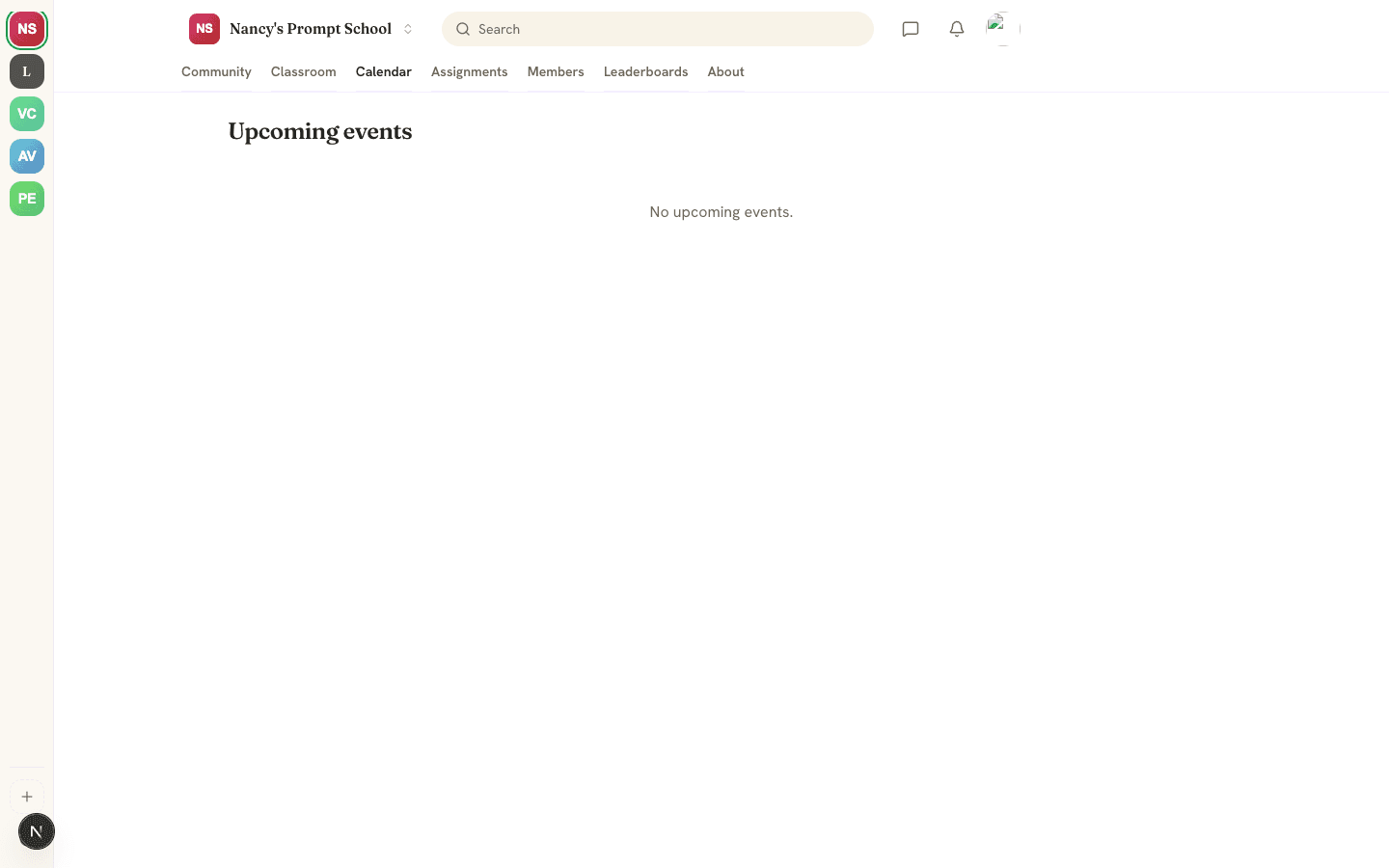
The Calendar tab lists Upcoming events in date order. Each shows the date, title, day and time, the description and, once people respond, how many are going. A Join link appears if you added a meeting link. Members click Going, Maybe or Can't, and can change their answer at any time. A class stays listed until it ends. If you set no end time, it stays for 2 hours after it starts, so members can still find the link.
Time zones
When you schedule, AISKOOL reads the time in your browser's time zone and saves that zone with the class. Members see the start time converted to their own device's time zone, and the zone you scheduled in appears beside it.
Change or cancel a class
The Live classes page lists classes under Upcoming and Past, with a going count for each. A class moves to Past when it starts. To cancel one, click the trash icon and confirm. This also deletes its RSVPs.
To change a class on the web, choose Edit on its card. You can change the title, time, link and description. Save applies the change and Cancel discards it. In the mobile app (see Mobile apps), open the class in Live classes and choose Save changes. RSVPs stay either way.
Reminders
About an hour before an event starts, members who answered Going or Maybe get a notification in the bell and a push on their phone. There is no email, and Can't means no reminder. If you move a class, members get a fresh reminder for the new time. To tell everyone about a class sooner, post in the feed or send a Broadcast to Telegram from Settings. See Feed, spaces and posts.
Frequently asked
Who can schedule live classes?
Can I make a class repeat every week?
Can I limit a class to a paid tier?
Can I add a class to my own calendar app?
Why is a class missing from the Calendar?
Related articles
Feed, spaces and posts
Post, comment and react in the community feed, organize it with categories, and pin, delete and report content.
Members, roles and moderation
How people join your community, what each role can do, and how to remove, ban, report, hide and block.
AISKOOL on iPhone and Android
What the AISKOOL app covers, what you still do on the website, how notifications and sign-in work, and where the apps stand today.